Private Cloud Gaming with Wake on LAN and Parsec
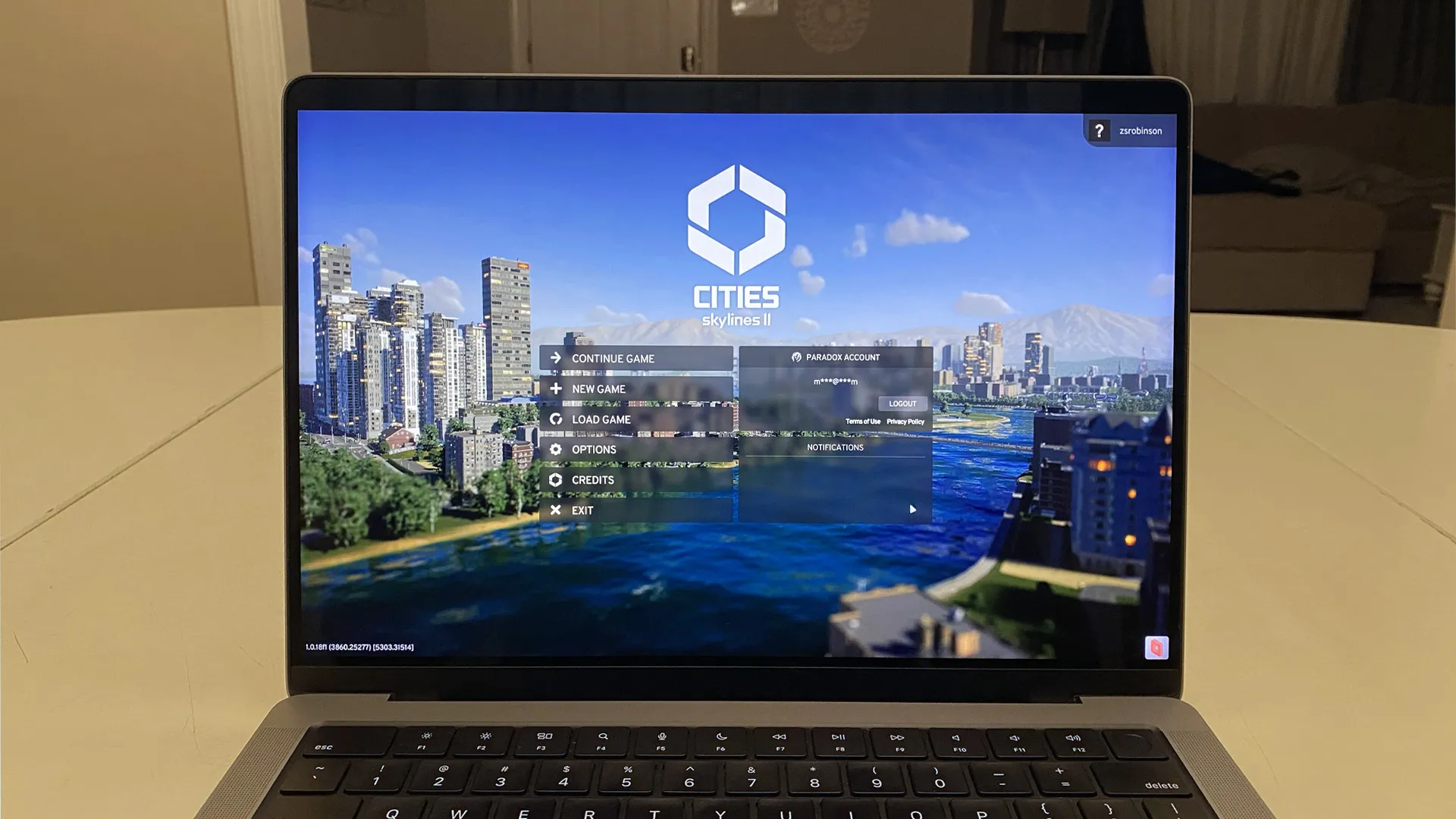
When Cities: Skylines II was released last October, I was thrilled to be able to play the successor to one of my favorite games of all time. But looking at the platforms that this sequel was available on, I was less thrilled to find that I could only play it on Windows. As I’ve talked about before, switching over to using a MacBook as my primary computer has actually been a pretty seamless process for me — with this being the notable exception. I wasn’t going to let something as trivial as the operating system stand in the way of playing this game that I was highly anticipating, so I looked around at some of my options.
The “easiest” option would have been to just bring my old desktop PC to college with me, but I really didn’t want to have to lug that thing to my dorm and have to deal with it being there. Instead, I opted to rent a cloud gaming PC from Shadow, who specialize in this type of thing. They make it pretty easy to rent out one of their computers and remote into it from anywhere. The experience was honestly pretty great, and the latency over a wired connection was low to the point where I could forget the fact that I was playing the game on a computer that was dozens of miles away from me 1.
The only problem was the price. I could justify spending $30 for a single month of this to play a game I was really looking forward to, but it wasn’t reasonable for the long term while I wait for the game to support MacOS. Over winter break, I pieced together a solution that let me do the same sort of thing as Shadow, but for the low price of free. This came down to two pieces: wake on LAN and a remote desktop service.
Wake on LAN is a really neat technology that allows a computer to be almost 100% turned off, but while still listening for something called a “magic packet”. This is a signal that can be sent by another computer on the same network that tells it to turn back on. The only thing that’s needed is for the computer to turn a special option on in the BIOS 2, and for the other computer to know the target’s MAC address.
My plan was to send these magic packets from my NAS, which I can assume will be running all of the time. Instead of having to ssh into the NAS and run some command, though, I wanted a nice way to send it from my browser. Luckily for me, I found a really neat project called UpSnap that fit this use case really well. I was able to get it up and running in just a few minutes using docker compose and just running the container in host mode. I really appreciate how simple UpSnap can be if all you need is to send a Wake on LAN packet, but it also has some really neat features like port scanning, sending ping requests to see if the computer actually turned on 3, sending shutdown commands, and setting up cron jobs to send these packets. Not to mention, it looks great and it’s nice to see people using things like SvelteKit and PocketBase in the wild.
The other half of this coin is some sort of remote desktop service to access the computer. If all I needed was simple remote desktop, then I could have easily just used something like RDP or VNC for this. But if I wanted to play a game over this connection and have it look halfway decent, then I needed something else. Parsec was great for this, and while I still need to test it from my college dorm, the latency and resolution have been great just testing it across my home wifi network. I’m guessing I’ll have pretty good luck with this given that I live decently close to campus and I can plug my laptop into ethernet on campus 4.
To wrap things up, I think it’s pretty amazing that these sorts of things are possible with how much internet speeds have improved over the last decade or so. Before we got fiber optic running to our neighborhood, nothing like this would have even remotely been possible. Even with the fairly high download speeds we got during the few years before fiber optic, we were still stuck with pretty slow upload speeds because of ADSL. With the higher speeds and symmetric upload/download speeds from fiber optic, I can now play a game on a computer that’s across the state from me as if it were right under my desk — and if that’s not neat, I don’t know what is.
Footnotes
-
It definitely helped that the computer was hosted in Washington DC and I was accessing it from College Park, which is close enough to have service to the DC metro. ↩
-
I’m guessing that different manufacturers label this different things, but for my ASUS motherboard, it was listed as “Power On By PCI-E”. You may also have to switch on a setting in Windows for it to work — I referred to this ASUS support article for help in my case. ↩
-
Make sure to double check that your computer will actually respond to ping requests in your firewall! I had to end up changing an option in Windows Defender to get this to work because pings were disabled by default. ↩
-
I was surprised to find out that we have gigabit ethernet going to all of our dorm rooms, which is even better than what we even have at home! ↩